
Accessibility Options Dialog
This Document
Status: Final
Revision History:
|
revision comment |
date |
author |
|---|---|---|
|
initial revision |
2002-07-16 |
|
|
spec review |
2002-11-01 |
|
|
GUI string review (rearranged string order, changed some texts) |
2002-11-25 |
|
|
added system HC mode detection, removed HC options for borders and draings |
2002-11-26 |
|
|
corrected method name in description for option 7) and little expansion |
2002-12-04 |
Proposal for the Tools - Options area, needed for configuration of accessibility support.
Dialog Mockup
Location: Tools-Options
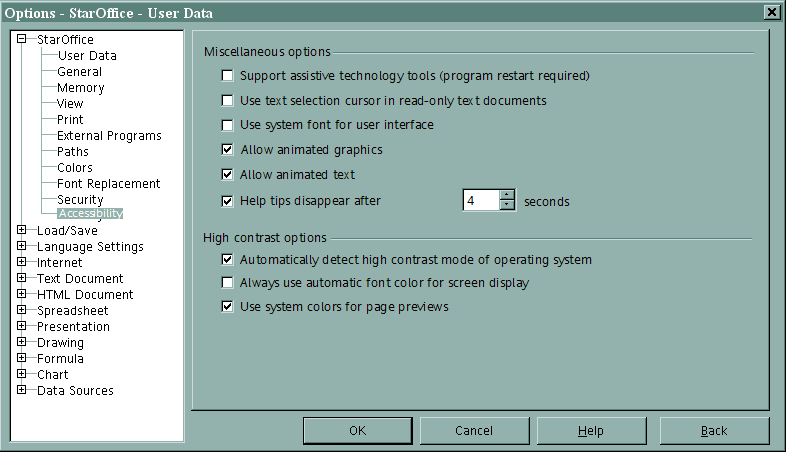
Strings:
|
Nr. |
English |
German |
|---|---|---|
|
|
Accessibility |
Zugänglichkeit |
|
|
Miscellaneous options |
Sonstige Optionen |
|
1 |
Support assistive technology tools (program restart required)
|
Unterstützung behindertengerechter Zugangsprogramme (Programmneustart erforderlich) |
|
2 |
Use text selection cursor in read-only text documents |
Textauswahlcursor in schreibgeschützten Textdokumenten verwenden |
|
3 |
Use system font for user interface |
Systemschriftart für die Benutzeroberfläche verwenden |
|
4 |
Allow animated graphics |
Animierte Grafiken zulassen |
|
5 |
Allow animated text |
Animierter Text zulassen |
|
6 |
Help tips disappear after |
Tipp-Hilfe verschwindet nach |
|
|
seconds |
Sekunden |
|
|
Options for high contrast appearance |
Optionen für die Kontrastdarstellung |
|
7 |
Automatically detect high contrast mode of operating system |
Kontrastdarstellungsmodus des Betriebssystems automatisch erkennen |
|
8 |
Use automatic font color for screen display |
Automatische Schriftfarbe für Bildschirmdarstellung verwenden |
|
9 |
Use system colors for page previews |
Systemfarben für Seitenvorschau verwenden |
Functional Description of Options
Currently there is no possibility to determine if the High Contrast Mode is active or not for the system since only an appearance scheme (skinning) will be changed. Even on Microsoft Windows the high contrast schemes could be set directly without activating the system high contrast flag.
Due to this the contrast view of an object or application will be activated if the OpenOffice.org setting for the document background (in tools.options.appearance) is dark (VCL function “IsDark” is true). This OpenOffice.org setting is defaulted to the system's windows background, but could be overridden in SO options.
So Drawings and Presentation will only change to contrast display if the API flag on Windows indicates it. On all other platforms (and the direct way of changing the skin on Windows) the contrast mode of Draw/Impress has to be turned on manually (View-Display quality-Contrast).
Borders and shadows of pages, paragraphs, tables and frames will always be displayed in the system's text color if both (border/shadow color and page background color) are light or dark using the “Is Dark” / “IsLight” function of VCL.
Miscellaneous options
This group contains accessibility options for all SO/OO document types.
1) Support assistive technology tools (program restart required)
Allows to use assistive tools, such as external screen readers, Braille devices or speech recognition input devices.
2) Use text selection cursor in read-only text documents
This option enables the new function of having a non blinking selection cursor in read-only document. Default is off.
3) Use system font for user interface
This option allows to change the UI font from our own to the system one.
4) Allow animated graphics
Activating this option will stop all graphical animation in all SO/OO applications. (i.e. animated GIF's, animated objects in Impress (during presentation), animated graphical previews (Gallery, Insert-Graphics-From File, Animation Tool in Impress)
5) Allow animated text
This options stop all textual animation like blinking and scrolling in all SO/OO applications.
6) Help tips disappear after X seconds
This enables/disables the automatic time out of Helptips. Duration (n) could be chosen from 1 to 99 seconds. If option is disabled the Helptip will not expire automatically (Loosing focus or ESC key if automatic time out is inactive.)
High contrast options
This group contains high contrast options.
7) Automatically detect high contrast mode of operating system
This option will be used by the function GetHighContrastMode (responsible developer is Philipp Lohmann). If this option is active (default is on) the internal function GetHighContrastMode determines a high contrast mode not only by analyzing a maybe existing flag of the operating system. Then the function will also determine if the window background is dark by using the IsDark function and return true regardless if a high contrast flag is set or not.
Instead of asking for this single flag at the SvtAccessibilityOptions the applications should use the above method Application::GetSettings().GetStyleSettings().GetHighContrastMode().
8) Always use automatic font color for screen display
This option overrides all text color attributes set in a SO/OO document for display only.
9) Use system colors for page previews
This option enables the use of high contrast colors, instead of displaying the normal/original WYSIWYG colors (like the document will be printed). Default for this option is on.
